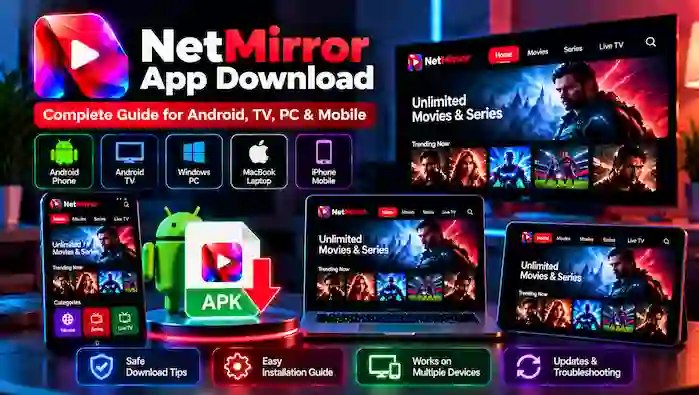
NetMirror app download is a common search for users who want to find and install a NetMirror-related application on their preferred device. However, the correct download method depends on whether you are using Android, Android TV, iPhone, Windows, or a browser.
This guide explains how to approach the download process, check compatibility, identify the appropriate version, troubleshoot common problems, and stay cautious when dealing with third-party application files.
What Is NetMirror App Download?
NetMirror app download refers to obtaining an application associated with the NetMirror name for use on a compatible device.
For Android devices, an application may be distributed as an APK. Other platforms use different application formats or may provide access through a web browser.
Before downloading, determine whether you actually need an installed application. If a supported web version provides the features you need, browser access may be simpler.
NetMirror App Download for Android
Android users commonly look for an APK when searching for the NetMirror app.
Before downloading an APK, check:
- Your Android version
- Available storage
- Device compatibility
- Application version
- Publisher information
- Download source
- Requested permissions
Do not assume that every APK using the NetMirror name is authentic or safe.
A trustworthy source and compatible version are more important than simply choosing the newest file.
How to Download NetMirror App on Android
If a compatible and legitimate Android version is available, the general process is straightforward.
Step 1: Check Your Android Version
Open your device settings and find the Android version information.
Compare it with the application’s requirements.
Step 2: Check Available Storage
Make sure your phone or tablet has sufficient free space for the download and installation.
Step 3: Verify the Source
Use a source that clearly identifies the application and its publisher.
Avoid files from pages that provide no useful information about their origin.
Step 4: Download the Appropriate Version
Choose the version intended for your device.
Do not install a random APK simply because it has a higher version number.
Step 5: Verify the File
Before opening the APK, check that the download completed correctly and that the file came from the expected source.
Step 6: Install the Application
Open the downloaded APK and follow Android’s installation prompts if you trust the file and it is compatible with your device.
Step 7: Launch the App
Once installation is complete, open the application and check whether it works correctly.
NetMirror App Download for Android Phone
Android phones vary significantly in hardware and software.
A compatible application should be checked against your phone’s:
- Android version
- Processor architecture
- Available storage
- Screen resolution
- System requirements
If installation fails, do not immediately download another APK. First determine what caused the failure.
NetMirror App Download for Android TV
Android TV has different requirements from mobile Android.
If you want to use a NetMirror-related application on a television, check whether the version supports Android TV.
Important factors include:
- TV operating system
- Remote navigation
- Screen layout
- Available storage
- Application compatibility
A mobile APK may not be optimized for a TV interface even if the installation succeeds.
NetMirror App Download for Mobile
“Mobile” can refer to both Android and iPhone, so the operating system matters.
Android
An APK may be relevant when a compatible Android application is legitimately distributed in that format.
iPhone
Android APK files are not normal iOS application packages. iPhone users should look for a compatible website or legitimate iOS application if one is available.
NetMirror App Download for iPhone
Users searching for NetMirror app download for iPhone should be careful about websites offering Android APK files.
An APK cannot normally be installed on an iPhone.
Instead, check whether the service provides:
- A supported website
- An official iOS application
- Another legitimate iPhone-compatible access method
Avoid pages that claim an Android APK can be directly installed on iOS.
NetMirror App Download for PC
A Windows or macOS computer does not normally install Android APK files as native applications.
PC users should first check whether a NetMirror-related web interface or legitimate desktop application is available.
A browser-based option can be useful because it avoids installing software that was designed for a different operating system.
NetMirror App Download for Laptop
The correct method depends on your laptop’s operating system.
Windows Laptop
Look for a supported Windows application or browser-based service.
MacBook
Check for macOS compatibility or use a supported web interface.
Chromebook
Compatibility depends on the Chromebook’s operating system and configuration.
Always match the software format to the operating system instead of downloading an APK simply because you want to use the service on a laptop.
NetMirror App Download vs APK Download
These keywords can appear similar but represent slightly different search intent.
| NetMirror App Download | NetMirror APK Download |
| Broad application search | Specifically targets Android package |
| Can refer to different platforms | Primarily Android |
| May include web or app options | Focuses on APK installation |
| Platform must be identified | Android compatibility is essential |
Understanding the difference helps you choose the appropriate installation method.
NetMirror App Download vs Online Access
Downloading an application is not always necessary.
| App Download | Online Access |
| Requires application installation | Uses a browser |
| May require updates | Website is updated independently |
| Uses device app resources | Uses browser resources |
| Platform compatibility is important | Browser compatibility is important |
If your goal is simply to access a supported web interface, online access may be more convenient.
NetMirror App Features
The available features depend on the particular version and service.
Users may look for an application because they want a dedicated interface with functions such as:
Content Search
A search feature can make it easier to find available titles.
Organized Categories
Categories can help users browse available content more efficiently.
Built-In Player
Some applications provide playback controls inside the application.
Subtitle Options
Where supported, subtitle settings may be available through the player.
Quality Controls
Some versions may offer different playback quality settings depending on the available content.
User-Friendly Interface
A dedicated application can provide navigation designed specifically for the supported platform.
Remember that these features should not be assumed to exist in every NetMirror-related application or version.
NetMirror App Download Safety
Before installing an application from outside a standard app store, take a few basic precautions.
Verify the Source
Find out who provides the application and whether the publisher can be identified.
Check Permissions
Review the permissions requested by the application.
Permissions that appear unrelated to its advertised functionality deserve extra scrutiny.
Keep Security Features Enabled
Android provides security features that can help identify potentially unsafe applications.
Do not disable security warnings simply to make an unknown APK install.
Avoid Suspicious Modified Versions
Modified APKs may contain changes that are not part of the expected application.
Keep Your Device Updated
Current operating-system and security updates can improve device protection and compatibility.
NetMirror App Download Problems
Sometimes an application will not download or install correctly.
Download Link Does Not Work
The page may be unavailable, the file may have been removed, or the link may be incorrect.
Check the source rather than searching for increasingly unfamiliar mirrors.
Download Stops
A weak connection or insufficient storage can interrupt a download.
Check your internet connection and available device storage.
APK Will Not Install
Possible causes include:
- Incompatible Android version
- Corrupted download
- Insufficient storage
- Conflicting application
- Unsupported architecture
- Incorrect package
Identify the specific problem before trying another file.
NetMirror App Download Latest Version
Users often search for the NetMirror app download latest version because they want the newest release.
However, the latest version is not necessarily the best choice for every device.
Before updating, check:
- Version information
- Compatibility requirements
- Release information
- Source authenticity
- Changes from previous releases
A newer version may require a newer Android release or different device resources.
NetMirror App Download 2026
Searches for NetMirror app download 2026 indicate an interest in a current release.
Because application versions can change over time, avoid relying on old version numbers copied from outdated pages.
Always verify the version information and compatibility at the time you download the software.
NetMirror App Installation Errors
“App Not Installed”
This can happen because of compatibility issues, insufficient storage, corrupted files, or conflicts with an existing application.
Parse Error
A parse error can indicate that Android cannot properly interpret the package.
Check whether the file is complete and compatible with your Android version.
Installation Blocked
Android may restrict installations from certain sources.
Read the security warning and verify the application before changing any settings.
App Crashes After Installation
Check whether your device meets the application’s requirements and whether a compatible update is available.
How to Troubleshoot NetMirror App Download
Use this checklist when you encounter problems:
- Check your internet connection.
- Confirm sufficient storage.
- Verify your operating system.
- Confirm the application version.
- Check the download source.
- Re-download only from a trustworthy source if the original file is incomplete.
- Restart your device.
- Check whether the application is already installed.
- Review Android security warnings.
- Avoid installing random modified versions.
NetMirror App Download and Updates
Keeping an application updated can provide compatibility improvements and bug fixes when a trustworthy update is available.
Before updating:
- Check the new version.
- Confirm device compatibility.
- Review release information.
- Use a verifiable source.
- Check whether important settings or data could be affected.
Do not update simply because another website advertises a newer version number.
Frequently Asked Questions
What is NetMirror app download?
It refers to obtaining a NetMirror-related application for a compatible device. The appropriate download method depends on the operating system.
Can I download NetMirror app on Android?
If a compatible Android application is legitimately available, Android users can use the appropriate installation method after verifying compatibility and source.
Can I download NetMirror app on iPhone?
An Android APK cannot normally be installed on iPhone. Look for a supported iOS application or web-based option instead.
Can I download NetMirror app on PC?
An Android APK is not a native Windows or macOS application. A compatible website or legitimate desktop version may be more appropriate.
Can I download NetMirror app on Android TV?
Only use a version that supports your Android TV environment and device.
Is NetMirror app download safe?
Safety depends on the specific file and its source. Verify the publisher, source, permissions, and device security warnings before installation.
Why is my NetMirror app download not working?
Possible causes include an unavailable file, weak connection, insufficient storage, incompatible software, or problems with the download source.
Should I download the latest NetMirror app version?
Choose a version that is compatible with your device and comes from a source you can verify. The newest version is not automatically suitable for every device.
Do I need an app if NetMirror works online?
Not necessarily. If a supported web interface provides the functionality you need, browser access may eliminate the need for an application.
Final Thoughts
NetMirror app download can mean different things depending on the user’s device. Android users may be looking for an APK, while PC, Mac, and iPhone users may need a browser-based or platform-specific solution.
Before downloading anything, identify your operating system, check compatibility, verify the source, review permissions, and pay attention to security warnings. If an APK fails to install, investigate the cause instead of repeatedly downloading unknown versions.
Choosing the correct and trustworthy access method is more important than simply finding the newest file.
1 thought on “NetMirror App Download: Complete Guide for Android, TV, PC & Mobile”