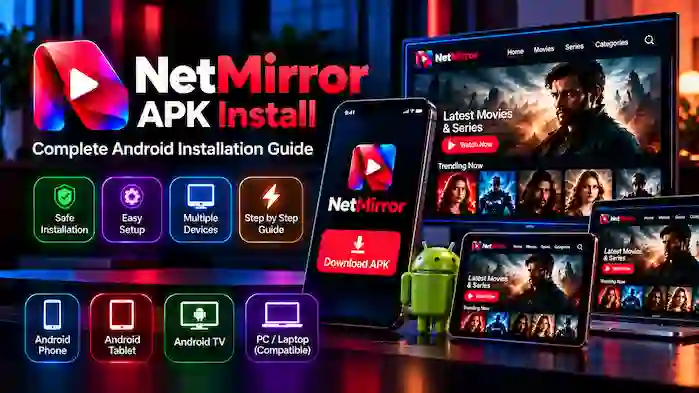
If you are looking for NetMirror APK install instructions, this guide explains how to prepare an Android device, check APK compatibility, install the application, and troubleshoot common installation problems.
Installing an APK is different from installing an application through a standard app store. Android may display security warnings when an application comes from outside the normal store process. You should therefore verify the APK source and understand the file before installing it.
This guide covers NetMirror download on Android phones, tablets, and compatible Android TV devices.
What Is NetMirror APK Install?
NetMirror APK install refers to installing a NetMirror Android application package manually on a compatible Android device.
An APK is an Android application package. Once downloaded, Android can use the package to install the application if the device and APK are compatible.
Common searches include:
- NetMirror install APK
- NetMirror APK install
- NetMirror install APK Android
- NetMirror APK install download
- NetMirror install APK Android download
- NetMirror install app
- NetMirror APK download and install
- NetMirror APK install for mobile
Although these keywords have similar intent, installation requirements can vary between devices.
Before Installing NetMirror APK
Before starting the installation, prepare your Android device.
Check Your Android Version
Open your device settings and find the Android version.
Compare it with the Android requirements of the NetMirror APK you intend to install.
If the APK requires a newer Android version than your device supports, installation may fail or the application may not work correctly.
Check Available Storage
Make sure your device has enough free storage.
The APK itself requires storage, and Android may also need additional space to complete the installation.
Verify the APK File
Before opening the file, check:
- File name
- Version number
- File size
- Source
- Android requirements
Avoid installing an APK simply because a download page labels it as the latest version.
Check Device Compatibility
A phone APK may not be optimized for Android TV, while a TV-focused release may not provide the right interface for a smartphone.
Choose a version intended for your device whenever possible.
How to Install NetMirror APK on Android
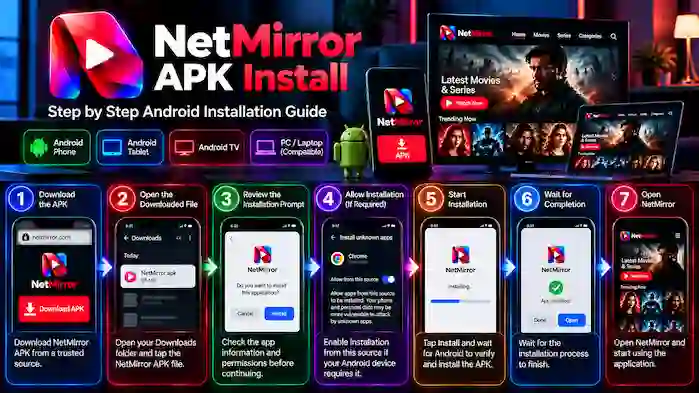
The general installation process is straightforward.
Step 1: Download the APK
First, obtain the NetMirror APK from a source you trust.
After downloading, check that the file has finished downloading completely.
Step 2: Open the Downloaded File
Open your device’s Downloads folder or file manager.
Locate the NetMirror NetMirror APK and select it.
Android should display an installation prompt if the file is recognized as a valid APK.
Step 3: Review the Installation Prompt
Android may display information about the application and a security warning.
Read the information carefully before continuing.
If the source of the APK is unknown or suspicious, do not proceed.
Step 4: Allow Installation When Required
Depending on your Android version and device settings, Android may restrict applications installed from outside its normal application source.
If you trust the APK source, review the relevant setting that allows installation from that source.
The exact menu name and location can vary between Android versions and manufacturers.
Step 5: Start Installation
Return to the APK file and select the installation option.
Android will verify the package and begin installing it if it is compatible.
Step 6: Wait for Installation to Finish
Do not close the installation screen while Android is processing the APK.
The installation time depends on your device and the application package.
Step 7: Open NetMirror
Once installation is complete, select the option to open the application.
You can also find it later in your Android application list.
NetMirror APK Install on Android Phone
For an Android phone, the installation process usually follows the standard APK workflow.
Before installing, check that:
- Your Android version is supported.
- You have enough storage.
- The APK is intended for mobile use.
- The file downloaded completely.
- You trust the source.
If the application installs but does not open, the problem may be compatibility rather than the installation process itself.
NetMirror APK Install on Android Tablet
Android tablets use the same general APK format as Android phones.
However, the application’s interface may not be optimized for larger screens.
Before installation, check whether the NetMirror release supports your tablet’s Android version and hardware.
NetMirror APK Install on Android TV
Installing an APK on Android TV can require a slightly different process because the APK must first be transferred to the TV or TV box.
Check TV Compatibility
Confirm the Android TV version and application requirements.
Transfer the APK
Use an appropriate file-transfer method to move the APK to your Android TV device.
Open the File
Use the TV’s available file manager or installation method to locate the APK.
Review Security Settings
Android TV may restrict installation of applications obtained outside its normal app distribution system.
Review the relevant security prompt carefully.
Install the APK
If the package is compatible, follow the on-screen instructions.
For detailed TV-specific information, see our NetMirror APK for Android TV guide.
NetMirror Install APK Android Settings
The exact Android security settings depend on your device manufacturer and Android version.
Older and newer Android versions may present these controls differently.
If Android blocks an APK, read the displayed message instead of randomly changing security settings.
Only allow installation from a source when you understand and trust where the APK came from.
After installation, you can review your security settings again.
NetMirror APK Install Download
Some users search for NetMirror APK install download because they want the complete process from downloading the file through installation.
The correct order is:
- Identify your device.
- Check APK compatibility.
- Download the appropriate file.
- Verify the downloaded file.
- Open the APK.
- Review Android’s security prompt.
- Install the application.
- Launch NetMirror.
- Check that it works correctly.
Separating the download and installation stages makes troubleshooting easier.
NetMirror APK Install vs App Store Installation
There is an important difference between manually installing an APK and installing an application through an official app store.
| APK Installation | App Store Installation |
| APK file required | Store listing required |
| Manual process | Guided installation |
| Source verification is important | Store provides additional screening |
| Updates may require manual action | Updates can be automated |
| Compatibility must be checked carefully | Store normally checks compatibility |
If a legitimate official application-store version is available for your device, it can be simpler to use that distribution method.
NetMirror APK Install Problems
If the APK will not install, do not immediately download another random version.
First identify the error.
“App Not Installed”
This message can have several causes.
Possible causes include:
- Incompatible Android version
- Damaged APK
- Insufficient storage
- Existing application conflict
- Unsupported APK architecture
- Installation restrictions
Check each possibility systematically.
APK File Will Not Open
If tapping the APK does nothing, confirm that the file downloaded correctly and that your device recognizes it as an APK package.
Try opening it through the file manager rather than an unrelated application.
Installation Is Blocked
Android may block installation from an unknown source.
Read the security message and review the relevant setting only if you trust the source of the APK.
Installation Stops Partway
A damaged download, insufficient storage, or incompatible package can cause an installation to stop.
Check storage and download integrity first.
App Installs but Immediately Closes
This can indicate that the APK is not compatible with your Android version or device.
Installing a different version may help only if that version is actually compatible with your device.
NetMirror APK Not Compatible
Compatibility is one of the most common reasons an APK installation fails.
Check:
Android Version
The APK may require a newer Android release.
Device Architecture
Some applications are packaged for particular processor architectures.
Screen or Device Type
A TV-focused application may not be optimized for a phone, and vice versa.
Application Version
An older Android device may require an older compatible application release.
NetMirror APK Install Error After Update
If NetMirror worked previously but stops working after an update, the new release may have changed its requirements.
Check:
- New Android requirements
- Application version
- Device compatibility
- Available storage
- Installation conflicts
If you still have the previous version and it is compatible, avoid deleting it until you understand what changed.
NetMirror APK Installation Safety
Manual APK installation should be approached carefully.
Use a Trusted Source
The source of the APK matters as much as the file itself.
Verify the File
Check the version, file size, and other available information.
Review Permissions
When Android displays requested permissions, review them carefully.
An application should not automatically receive every permission simply because it is being installed.
Avoid Modified APKs
Be cautious with files advertised as cracked, modified, unlocked, or premium.
Such packages can have unknown changes.
Keep Device Security Enabled
Do not disable Android security protections simply to force an installation.
If Android displays a warning, understand the reason before continuing.
How to Uninstall NetMirror APK
If you no longer want the application, uninstall it through your Android device settings.
A typical process is:
- Open Settings.
- Go to Apps or Applications.
- Find NetMirror.
- Open the application’s information page.
- Select Uninstall.
- Confirm the removal.
Menu names can vary depending on the manufacturer and Android version.
How to Update NetMirror APK
If you manually installed the application, updates may also need to be handled manually.
Before installing a newer APK:
- Check the new version.
- Review its requirements.
- Confirm device compatibility.
- Verify the source.
- Check available storage.
- Install the update.
- Open the application and test it.
Do not assume that every newer APK will work better on every device.
NetMirror APK Install for Older Android Devices
Older devices can have additional compatibility limitations.
If a current APK requires a newer Android version, it may not install on an older phone.
In this situation, check whether a legitimately available older release supports your Android version.
Avoid downloading unknown “old versions” from suspicious sources.
NetMirror APK Install on Different Devices
The installation method depends on the platform.
Android Phone
APK can generally be opened directly through a file manager after download.
Android Tablet
The process is similar to a phone, but compatibility and interface scaling should be checked.
Android TV
The APK may need to be transferred to the TV before installation.
Windows PC
An APK is not a native Windows installer. A compatible Android environment or web access may be required.
iPhone and iPad
APK files are not native iOS applications.
This distinction prevents many unnecessary installation attempts.
NetMirror APK Install Checklist
Before installing, use this quick checklist:
- Device identified
- Android version checked
- APK requirements reviewed
- Enough storage available
- APK source verified
- File download completed
- File information checked
- Security warning reviewed
- Installation completed
- Application tested
Following these steps can help identify problems before they become difficult to troubleshoot.
Frequently Asked Questions
How do I install NetMirror APK?
Download a compatible APK, open it through your Android file manager, review the security prompt, and follow the installation instructions shown by Android.
Why is NetMirror APK not installing?
Common causes include an incompatible Android version, insufficient storage, damaged APK, unsupported architecture, application conflicts, or installation restrictions.
Can I install NetMirror APK on Android TV?
If the APK is compatible with your Android TV device, you may be able to install it after transferring the file to the TV.
Can I install NetMirror APK on iPhone?
No. APK is an Android application package and is not the standard application format for iPhone or iPad.
Can I install NetMirror APK on PC?
An APK is not a standard Windows application. A compatible Android environment may be required to run an Android application on a PC.
Do I need to enable unknown-source installation?
Depending on your Android version and where the APK came from, Android may require permission for installation from that source. Only enable it when you understand and trust the source.
Is APK installation safe?
Manual APK installation can carry additional risks because the file may come from outside the standard app distribution process. Verify the source, inspect the file information, and review requested permissions.
Should I install the latest NetMirror APK?
Not automatically. The latest version may require a newer Android version or have different compatibility requirements. Choose a release that suits your device.
What should I do if NetMirror crashes after installation?
Check the Android version, APK compatibility, available storage, and application version. If the application is not compatible with your device, another compatible release may be necessary.
Final Thoughts
NetMirror APK install is straightforward when the APK, Android version, and device are compatible.
The most important steps are checking compatibility before downloading, verifying the APK source, ensuring enough storage, and carefully reviewing Android’s security prompts.
If installation fails, identify the specific error rather than repeatedly downloading unrelated APK files. Check Android requirements, storage, file integrity, architecture, and application conflicts first.
For Android TV, PC, and iOS users, remember that each platform has different application requirements. An Android APK is designed for Android and should not be treated as a universal application format.
A careful installation process helps you avoid unnecessary compatibility problems while keeping your device and personal information better protected.