

If you are looking for NetMirror APK install instructions, this guide explains how to prepare an Android device, check APK compatibility, and complete the installation process. Installing an APK can be straightforward, but the correct steps depend on your Android version and device manufacturer.
Before installing NetMirror APK download make sure you have a compatible file and enough storage space. You should also review the APK source and version information before opening the file.
What Is NetMirror APK Installation?
NetMirror APK installation means installing the NetMirror Android application package manually on a compatible Android device.
Unlike applications installed directly through an app store, an APK may need to be downloaded separately before Android can install it. Because Android versions and manufacturer interfaces differ, the exact menus and prompts may not be identical on every phone.
The basic process is:
- Check compatibility.
- Download the appropriate APK.
- Locate the downloaded file.
- Review Android installation settings.
- Start the installation.
- Open the application.
Check Your Device Before Installing NetMirror APK
Before starting the installation, check whether your Android device meets the requirements of the APK version you have downloaded.
Check Android Version
Open your device settings and find the Android version information. Compare it with the requirements listed for the NetMirror APK release.
Check Available Storage
Make sure your device has enough free storage. A lack of available space can prevent an APK from installing even when the application is otherwise compatible.
Check the APK Version
Confirm that the downloaded file is the version you intended to install. If you already have NetMirror installed, check whether the new version is compatible with your existing installation.
Check the Downloaded File
Make sure the download has completed successfully. An incomplete or damaged APK can cause installation errors.
How to Install NetMirror APK on Android
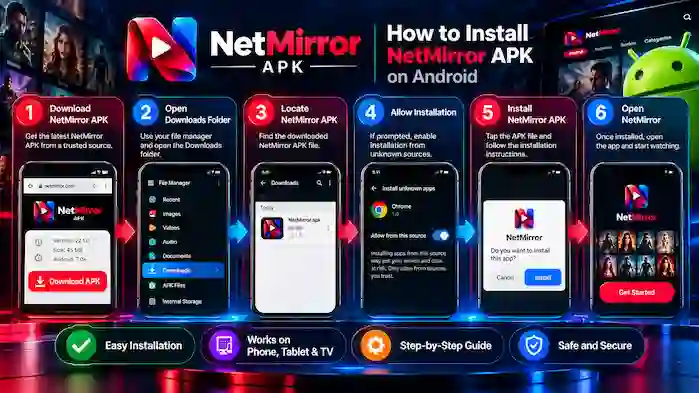
The following process provides a general Android installation workflow.
Step 1: Download a Compatible NetMirror APK
First, obtain the NetMirror APK version you want to install from a source you trust.
Before opening the file, check its version, size, Android requirements, and other available information.
If you have not downloaded the APK yet, visit our NetMirror APK Download page for download information.
Step 2: Open the Downloads Folder
After the APK finishes downloading, open your Android file manager or Downloads folder.
Look for the downloaded NetMirror APK file.
If you cannot find it, check your browser’s download history or the default Downloads directory on your device.
Step 3: Start the Installation
Tap the APK file to begin the installation process.
Android may display information about the application and request confirmation before continuing.
Review the information carefully before proceeding.
Step 4: Review Android Installation Settings
Depending on your Android version and device, Android may restrict applications installed from sources outside the normal app-store process.
If Android displays a warning or asks you to change an installation setting, read the message carefully and only proceed if you trust the APK source.
The exact setting name and location can vary between Android versions and manufacturers.
Step 5: Install NetMirror APK
After the required settings have been addressed, return to the APK file and start the installation.
Android will process the package and display the installation status.
If the file is compatible and there are no installation conflicts, the process should complete.
Step 6: Open NetMirror
Once installation is finished, select the option to open the application or find NetMirror in your device’s application list.
The first launch may take longer than subsequent launches while the application completes its initial setup.
NetMirror APK Install on Android Phone
The installation process on most Android phones follows the same general workflow, but the menus can differ between manufacturers.
For example, the location of security and installation settings may be different on Samsung, Xiaomi, Google Pixel, OnePlus, Oppo, Vivo, or other Android devices.
If you cannot find a particular option, use your device’s Settings search function to look for terms related to application installation or unknown app sources.
NetMirror APK Install on Android Tablet
Android tablets can also use APK files when the application is compatible with the tablet’s Android version and hardware.
Before installing, check:
- Android version
- Available storage
- Screen compatibility
- APK requirements
- File integrity
A phone-compatible APK is not automatically guaranteed to provide an ideal experience on every tablet.
NetMirror APK Install on Android TV
Users searching for NetMirror APK install Android TV should check TV compatibility separately.
Android TV devices can have different interfaces, controls, and application requirements compared with Android phones.
If you are installing NetMirror on a compatible Android TV device, make sure the APK supports the device before proceeding.
For more information, see our dedicated NetMirror for Android TV guide.
NetMirror APK Install for Mobile
The terms NetMirror install APK, NetMirror APK install, and NetMirror install app generally refer to the same basic Android installation process.
For mobile installation, download the appropriate APK, open the downloaded file, review Android’s security prompt, and follow the installation instructions displayed by the device.
Always verify the file before opening it.
NetMirror APK Install Problems
Sometimes Android refuses to install an APK. The cause can be simple, such as insufficient storage, or it can be related to compatibility or the downloaded file.
APK Is Not Installing
If NetMirror APK will not install, first check:
- Android compatibility
- Available storage
- APK file integrity
- Installation settings
- Existing NetMirror installation
- File source
Trying a different version without identifying the problem may not solve the issue.
App Not Installed Error
The “App not installed” message can have several possible causes.
The APK may be incompatible with your Android version, the file may be damaged, or another installed version may conflict with the package.
Check the APK requirements and make sure the downloaded file is complete.
Insufficient Storage
If your device does not have enough free space, installation may fail.
Delete unnecessary files or applications if appropriate, then make sure there is enough available storage before trying again.
Incompatible Android Version
An APK may require a newer Android release than the one installed on your device.
Check the APK’s minimum Android requirement before attempting another installation.
Existing Version Conflict
If NetMirror is already installed, a new APK may not install correctly because of a version or package conflict.
Before removing an existing installation, consider whether you need any locally stored data or settings.
Corrupted APK
A damaged download can prevent Android from reading or installing the package.
If you suspect that the file is incomplete or corrupted, delete it and obtain a fresh copy from a trusted source.
NetMirror APK Install Security Tips
Manual APK installation requires extra care because the file may come from outside the normal app-store ecosystem.
Verify the Source
Download APK files only from sources you trust. Be cautious with websites that use misleading download buttons, unexpected redirects, or suspicious pop-ups.
Check App Permissions
After installation, review the permissions requested by NetMirror. Permissions should be reasonable for the application’s functionality.
Keep Android Security Features Enabled
Do not disable your device’s security protections unnecessarily. Android’s built-in security features can help identify potentially harmful applications.
Avoid Modified Files From Unknown Sources
A file described as a “mod,” “cracked,” or “unlocked” version may have been modified. Such files can carry additional risks, so verify what you are installing before proceeding.
How to Update NetMirror APK
If you already have ,, installed and want to install a newer APK version, first compare the existing and new versions.
Check:
- New version number
- Android requirements
- Compatibility
- Release information
- File source
If the update is compatible, download the newer APK and follow the same installation process.
You should consider your existing app data before uninstalling or replacing an application.
NetMirror APK Install vs App Store Installation
There is an important difference between manually installing an APK and installing an application through an official app store.
With an APK:
- You download the package separately.
- You need to verify the file yourself.
- Compatibility needs to be checked.
- Android may display additional security prompts.
- Updates may need to be handled manually.
With an app store:
- The store manages the application package.
- Compatibility is generally checked automatically.
- Updates can often be delivered through the store.
- The installation process is usually more streamlined.
For this reason, users should understand the source and version of an APK before installing it.
Can NetMirror APK Be Installed on iPhone?
No Android APK should be treated as a normal iPhone application file.
APK is an Android package format, while iPhone and iPad applications use Apple’s application ecosystem.
If you are using an iPhone, check whether a compatible iOS application or web-based access option is available instead of trying to install an Android APK.
Can NetMirror APK Be Installed on PC?
An APK is designed for Android and is not automatically a native Windows or macOS application.
If you want to use NetMirror on a computer, check whether a compatible web option or other supported method exists.
See our NetMirror for PC guide for more information about computer access.
Troubleshooting Checklist
If NetMirror APK installation is unsuccessful, go through this checklist:
Before Installation
- Confirm Android compatibility.
- Check available storage.
- Verify the APK version.
- Confirm the file has fully downloaded.
- Check the download source.
During Installation
- Read Android’s installation warning.
- Check whether installation from the selected source is permitted.
- Look for compatibility errors.
- Check whether another version is already installed.
After Installation
- Restart the device if necessary.
- Check whether the application opens correctly.
- Review requested permissions.
- Confirm that the installed version matches the downloaded release.
Frequently Asked Questions
How do I install NetMirror APK?
Download a compatible APK, open the downloaded file, review Android’s installation settings, and follow the installation prompts displayed on your device.
Why is NetMirror APK not installing?
Possible causes include incompatible Android versions, insufficient storage, a damaged APK, installation restrictions, or a conflict with an existing version.
Do I need to enable unknown sources?
Android may require permission for installing applications from sources outside the normal app-store process. The exact setting varies by Android version and device.
Can I install NetMirror APK on Android TV?
Only if the APK is compatible with the particular Android TV device. Check the release requirements before installation.
Can I install NetMirror APK on iPhone?
An Android APK is not the standard installation format for iPhone or iPad. Look for a compatible iOS application or web option instead.
Can I install NetMirror APK on Windows?
An APK is an Android package rather than a native Windows application. Check whether a compatible web or PC option is available.
Can I install an older NetMirror APK?
An older version may work on a device that is incompatible with a newer release, but outdated software can have limitations. Check compatibility and security considerations before installing an older version.
Final Thoughts
The NetMirror APK install process is generally straightforward when you have a compatible Android device and a valid APK file. The most important steps are checking the Android requirements, verifying the downloaded file, ensuring enough storage, and following your device’s installation prompts.
If installation fails, do not repeatedly download random APK versions. Instead, identify whether the problem is related to compatibility, storage, installation settings, an existing application, or the APK file itself.
For users on other platforms, remember that Android APK files are different from iOS applications and native PC software. Use the appropriate platform guide to find the correct access method.