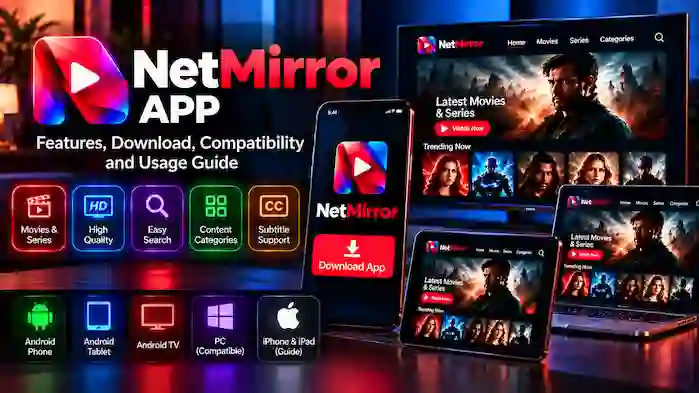
The NetMirror app is a search term used by people looking for a convenient way to explore and access entertainment content on compatible devices. Depending on the version and platform, users may be looking for an Android application, a TV-compatible version, or browser-based access.
This guide explains what the NetMirror app is, how its APK relates to Android devices, which compatibility checks matter, how users can approach installation, and how to troubleshoot common problems.
Because application versions and availability can change, always verify the version, device requirements, and source before installing any application.
What Is the NetMirror App?
NetMirror app generally refers to an application associated with NetMirror that users may want to install on a compatible device.
People search for the app using terms such as:
- NetMirror app
- NetMirror app download
- NetMirror app APK
- NetMirror app download APK
- NetMirror app for Android
- NetMirror app for PC
- NetMirror TV app
- NetMirror app for Android TV
- NetMirror new app
- NetMirror app watch movies and series
These searches can represent different intentions. Someone searching for the Android app may want an APK, while a PC user may be looking for browser access or another compatible solution.
NetMirror App for Android
Android is particularly relevant to users searching for the NetMirror app for Android because Android supports APK-based application installation.
Before installing the application, check:
- Android version
- Device compatibility
- APK version
- Available storage
- File source
- Required permissions
A compatible APK should match the requirements of your particular device.
NetMirror App APK
An APK is an Android application package.
If the NetMirror app is distributed as an APK, the file is intended for compatible Android devices. It should not be treated as a universal application format.
For example:
- Android phones can use compatible APK files.
- Android tablets can use compatible APK files.
- Android TV may support compatible APK files.
- iPhones do not natively install Android APK files.
- Windows PCs do not normally install APK files as native Windows applications.
This distinction is important when choosing the correct download or access method.
NetMirror App Download
Users searching for NetMirror app download should first identify the device they intend to use.
Android Phone
Look for a compatible Android release and check its requirements before installation.
Android Tablet
Check whether the interface and APK are compatible with the tablet.
Android TV
Use a TV-compatible release when available and verify remote-navigation support.
PC
Check whether browser access or another supported method is available instead of treating an APK as a Windows application.
iPhone and iPad
Look for a compatible iOS application or web access rather than an Android APK.
How to Download the NetMirror App
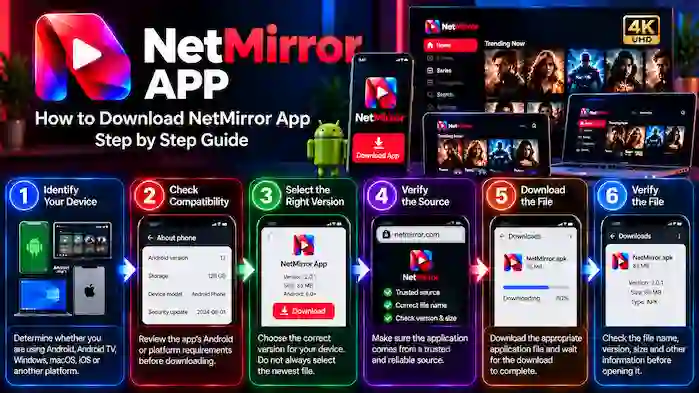
The general download process is simple, but selecting the right version is important.
Step 1: Identify Your Device
Determine whether you are using Android, Android TV, Windows, macOS, iOS, or another platform.
Step 2: Check Compatibility
Review the application’s Android or platform requirements.
Step 3: Select the Appropriate Version
Do not automatically choose the newest file. The latest version may require a newer operating system than your device supports.
Step 4: Verify the Source
Check where the application file comes from before downloading it.
Step 5: Download the File
Download the appropriate application package and wait for the download to complete.
Step 6: Verify the File
Check the file name, version, and other available information before opening it.
NetMirror App Installation
If you have downloaded an Android APK, the installation process normally involves opening the file through your Android device’s file manager.
Android may display a security prompt when the application comes from outside its standard application distribution process.
Read the warning carefully and only continue when you trust the source of the application.
For detailed installation instructions, see our NetMirror APK Install guide.
NetMirror App Features
Features can vary between releases and devices. The following are areas users commonly look for when evaluating an entertainment application.
Simple Navigation
A clear interface can make it easier to browse available sections and find content.
Search
A search function can help users find specific titles more quickly.
Content Categories
Categories can organize available movies, shows, or other entertainment content.
Playback Controls
A compatible application may provide standard controls for starting, pausing, and adjusting playback.
Subtitle Support
Where supported, subtitle options can make content easier to follow.
Quality Options
Some versions may provide different playback quality settings depending on the available content and player.
Mobile Interface
An Android phone application should provide controls that work well with touch input.
TV Navigation
A TV-oriented version should ideally support remote-based navigation.
NetMirror App Watch Movies and Series
The search phrase NetMirror app watch movies and series indicates that many users are interested in entertainment browsing and playback.
If the application provides these features, users may be able to:
- Open the application.
- Browse available categories.
- Search for a title.
- Select an available item.
- Open the playback interface.
- Adjust available playback settings.
Available content and features can vary between versions and regions.
How to Use the NetMirror App
Once a compatible version is installed, the basic navigation process can be straightforward.
Step 1: Open the App
Launch NetMirror from your device’s application list.
Step 2: Explore the Home Screen
Review the available categories, navigation menus, or recommendations.
Step 3: Search for Content
Use the search function when looking for a specific title.
Step 4: Select a Title
Open the item you want to explore.
Step 5: Start Playback
If playback is available, use the application’s player controls.
Step 6: Adjust Available Options
Depending on the version, you may be able to adjust quality, subtitles, audio, or other playback settings.
NetMirror App for Android TV
The NetMirror app for Android TV requires additional compatibility considerations.
A mobile application may install on some Android TV environments but still be difficult to navigate with a remote.
Before using an APK on a TV, check:
- Android TV version
- APK requirements
- Screen layout
- Remote compatibility
- Storage
- Device architecture
A TV-optimized version is preferable when available.
For more information, visit our NetMirror APK for Android TV guide.
NetMirror TV App
The term NetMirror TV app may refer to a television-oriented version of the application.
TV applications should be designed for large displays and remote controls.
Important considerations include:
- Readable menus
- Remote navigation
- Clear playback controls
- Simple search
- TV-compatible APK requirements
Not every Android APK provides the same experience on a television.
NetMirror App for PC
Users searching for NetMirror app for PC should distinguish between an Android APK and a native desktop application.
An APK is not a standard Windows executable.
If you want to access NetMirror on a PC, first check whether a compatible web version exists. If you specifically need the Android application, an appropriate Android environment may be required.
For more information, see our NetMirror for PC guide.
NetMirror App for Laptop
A laptop can access websites through a browser, so browser-based NetMirror access may be an option if a compatible web interface is available.
For Android APK usage, however, a laptop needs a compatible Android environment because Windows or macOS does not normally install Android APK files as native applications.
NetMirror App for iPhone
iPhone users should not attempt to install an Android APK as though it were an iOS application.
If a compatible iOS application exists, use an appropriate iOS distribution method. Otherwise, check whether browser-based access is available.
For detailed information, see our NetMirror for iOS guide.
NetMirror App Login
If the NetMirror app provides an account or login system, use the application’s normal login interface.
Before entering credentials, verify that you are using the correct application or website.
Be cautious with unofficial pages that use the NetMirror name and request unnecessary personal information.
NetMirror App Updates
Keeping an application updated can provide compatibility improvements and bug fixes, but users should still verify requirements before updating.
Before installing a new APK version:
- Check the version number.
- Review the stated requirements.
- Confirm device compatibility.
- Verify the source.
- Check available storage.
- Install the update.
- Test the application afterward.
Do not assume that every newer release will work on every older Android device.
NetMirror New App
The phrase NetMirror new app can refer to users searching for a newer application release or updated version.
When evaluating a new release, look for meaningful version information rather than relying only on words such as “new,” “latest,” or “2026.”
Check the actual version number and compatibility requirements.
NetMirror App Safety
Application safety depends heavily on the source and the file being installed.
Verify the Source
Download applications from sources you trust.
Check Permissions
Review the permissions requested by the application.
Avoid Suspicious Modified Versions
Be cautious with APKs described as cracked, unlocked, modified, or premium.
Keep Device Security Enabled
Do not disable Android security features simply to install an unfamiliar application.
Check Download Information
Review the file name, version, and available file information before installation.
NetMirror App Troubleshooting
Even when installation succeeds, users may experience problems.
App Will Not Install
Check Android version, storage, APK integrity, and compatibility.
App Will Not Open
The application may be incompatible with your device or Android version.
App Keeps Crashing
Check whether the version is supported and whether your device has sufficient resources.
Playback Does Not Start
Check your internet connection, application version, and available playback options.
App Is Slow
Performance can depend on your device hardware, network connection, application version, and background activity.
TV Remote Does Not Work Properly
The application may not be optimized for Android TV navigation.
App Is Not Updating
Check the new version’s compatibility and make sure enough storage is available.
NetMirror App vs NetMirror Web
NetMirror App and NetMirror Web provide different access approaches.
| Feature | NetMirror App | NetMirror Web |
| Access | Installed application | Browser |
| APK | May be required on Android | Not required |
| Updates | Application-specific | Usually server-side |
| Storage | Requires app storage | Minimal local installation |
| Platform | Depends on app compatibility | Depends on browser compatibility |
| Navigation | App interface | Website interface |
If you do not want to install an application, browser access may be preferable when supported.
NetMirror App vs Android APK
These terms are closely connected but not identical.
The NetMirror app refers to the application itself.
The NetMirror APK refers specifically to the Android package used to install the application.
Think of the APK as the installation file rather than the application itself.
NetMirror App vs Official Streaming Services
Users should also consider legitimate streaming platforms that provide established applications and browser support.
Depending on your region, alternatives may include:
- Netflix
- Disney+
- Amazon Prime Video
- Tubi
- Pluto TV
Catalogs, pricing, availability, and supported devices vary by service and location.
Frequently Asked Questions
What is the NetMirror app?
NetMirror app refers to an application associated with NetMirror that users may access on compatible devices.
Can I download the NetMirror app on Android?
If a compatible Android release is available, Android users may be able to install it using an appropriate application package.
What is the NetMirror APK?
An APK is the Android application package used to install an Android application.
Can I use NetMirror on Android TV?
A compatible release may work on Android TV, but you should check TV compatibility and remote navigation before installing it.
Can I use the NetMirror app on PC?
That depends on the available access method. A browser version may work on a PC, while an Android APK requires a compatible Android environment.
Can I install the NetMirror app on iPhone?
An Android APK cannot be installed as a native iPhone application. Check for a compatible iOS version or supported web access.
How do I update the NetMirror app?
Check the latest compatible version, verify its source and requirements, and install the update using the appropriate method for your device.
Why is the NetMirror app not working?
Possible causes include compatibility issues, outdated software, insufficient resources, network problems, or application-specific bugs.
Why does NetMirror crash on Android?
Check your Android version, available storage, application version, and whether the APK is compatible with your device.
Is the NetMirror app safe?
Safety depends on the application source, file integrity, permissions, and how the application is distributed. Verify these factors before installation.
Final Thoughts
The NetMirror app can refer to different access methods depending on the device and application version. Android users may encounter the app as an APK, while PC and iOS users may need a compatible web or platform-specific option.
Before downloading or installing the application, identify your device, check the required operating system version, verify the source, and review the requested permissions.
Android phone and tablet users should select a compatible APK, while Android TV users should check TV-specific requirements. PC users should distinguish an Android APK from a native Windows application, and iPhone users should not attempt to install an Android APK.
Taking these compatibility and safety checks seriously can help you choose the appropriate NetMirror access method and avoid common installation problems.